Native Screen Recorder & Instant Replay
1. Overview
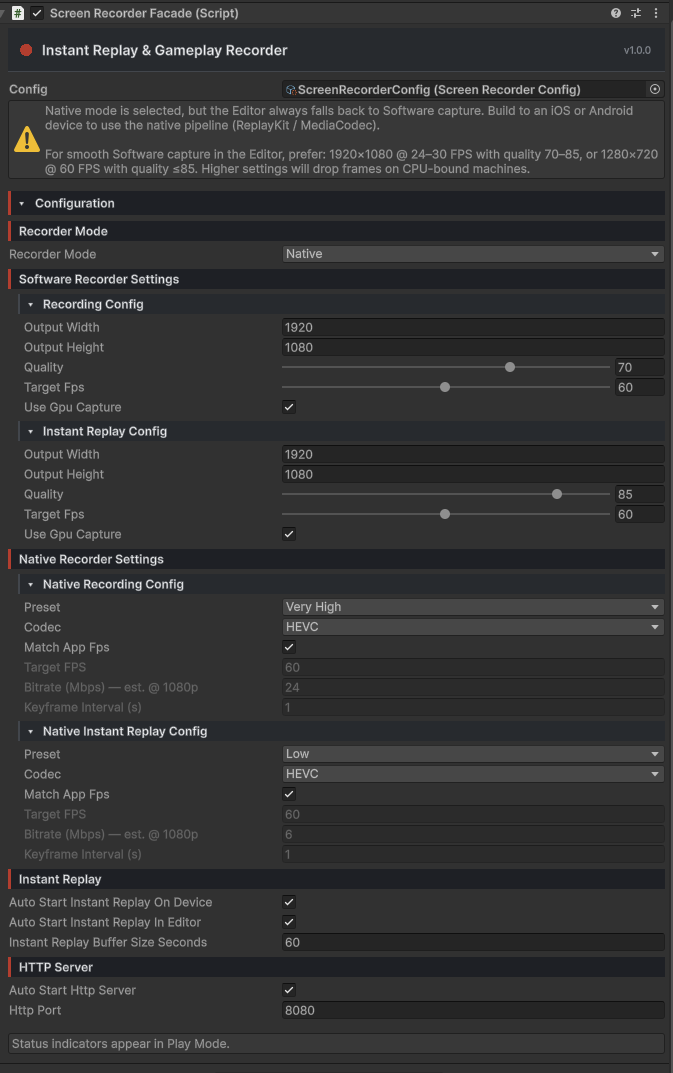
Record gameplay to MP4, save the last N seconds on demand (instant replay), capture screenshots, and remote-control everything over HTTP from a browser.
Headline features:
- Native recording on iOS via ReplayKit and on Android via MediaProjection + MediaCodec — H.264 or HEVC, encoded on-device.
- Software fallback in pure C# that runs anywhere, including the Editor.
- Instant replay — a rolling buffer keeps the last N seconds in memory; save it as MP4 in one call.
- Remote Dashboard that binds over LAN, with a REST API for automation.
- Render-pipeline agnostic. No URP/HDRP setup.
2. Requirements
- Unity 2022.3 or newer.
- iOS 11+ for native recording.
- Android API 24+ for native recording. minSdk 24, targetSdk 29+.
- Render pipeline — Built-in, URP, or HDRP. No extra setup.
3. Installation
Install from My Assets
After purchasing on the Asset Store, open Window → Package Manager in Unity, switch the source dropdown to My Assets, find Native Screen Recorder & Instant Replay, and click Install.
iOS — nothing manual
The included build post-processor links ReplayKit.framework automatically and adds NSLocalNetworkUsageDescription to Info.plist only when the HTTP server is enabled in your config. ReplayKit shows its own permission prompt the first time recording starts — you don't need to declare anything else.
Android — nothing manual
Permissions ship inside the bundled .aar and merge into your manifest at build time:
android.permission.FOREGROUND_SERVICEandroid.permission.FOREGROUND_SERVICE_MEDIA_PROJECTIONandroid.permission.POST_NOTIFICATIONS
Set Player Settings → Other Settings → Minimum API Level to 24 and Target API Level to 29 or newer.
UniTask integration (optional)
Every async API has a coroutine-callback version that always works, and a UniTask version that lights up when the com.cysharp.unitask UPM package is installed in your project. The integration assembly is gated by the RECORDER_UNITASK_SUPPORT scripting define.
- UniTask installed via Package Manager (git URL, OpenUPM, scoped registry) — the define is set automatically via
versionDefines. No manual setup. - UniTask installed manually as a plain folder under
Assets/(without a UPMpackage.json) — Unity cannot detect it viaversionDefines. AddRECORDER_UNITASK_SUPPORTto Project Settings → Player → Other Settings → Scripting Define Symbols for every platform you build for, and the UniTask extension methods become available.
If UniTask is not in your project at all, the integration assembly is simply skipped — there is no error and the coroutine-callback API keeps working.
4. Quick Start
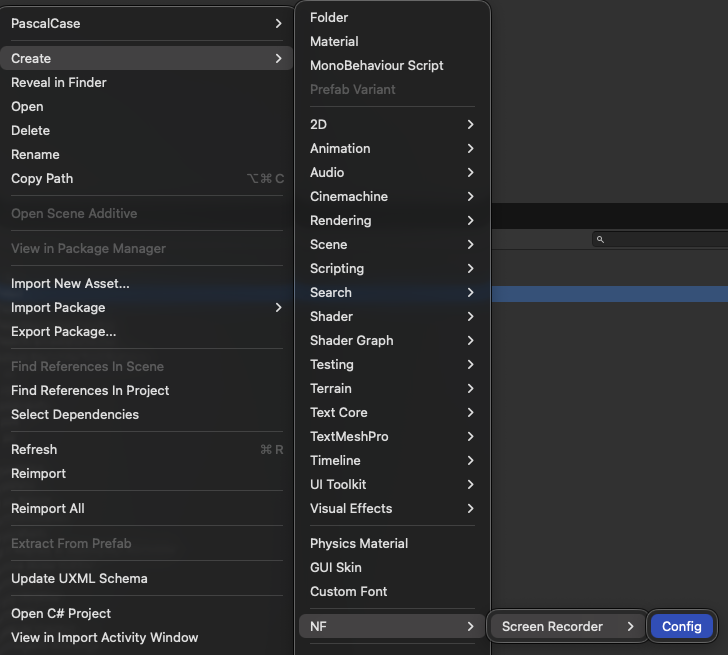
A working recorder in four steps.
1. Create a config asset
Project window → right-click → Create → NF → Screen Recorder → Config. Defaults are sensible — leave them for now.
2. Add the recorder to your scene
Add an empty GameObject, attach the ScreenRecorderFacade component, and assign the config you just created to its Config field. The component survives scene loads (DontDestroyOnLoad) — one is enough for the whole game.
3. Record from script
Get a reference to the facade and call:
[SerializeField] private ScreenRecorderFacade _recorder;

public void RecordTenSeconds()
{
    _recorder.RecordFor(10, mp4 =>
    {
        var path = Path.Combine(Application.persistentDataPath, "clip.mp4");
        File.WriteAllBytes(path, mp4);
    });
}
4. (Optional) Open the dashboard
In the config, tick Auto Start HTTP Server. When playing in the Editor or running on the same machine as your browser, just open http://localhost:8080/. For builds on a phone or another device, find the device's LAN IP and open http://<device-ip>:8080/ from your laptop's browser. You'll get one-click record, replay, and screenshot.
5. Configuration Reference
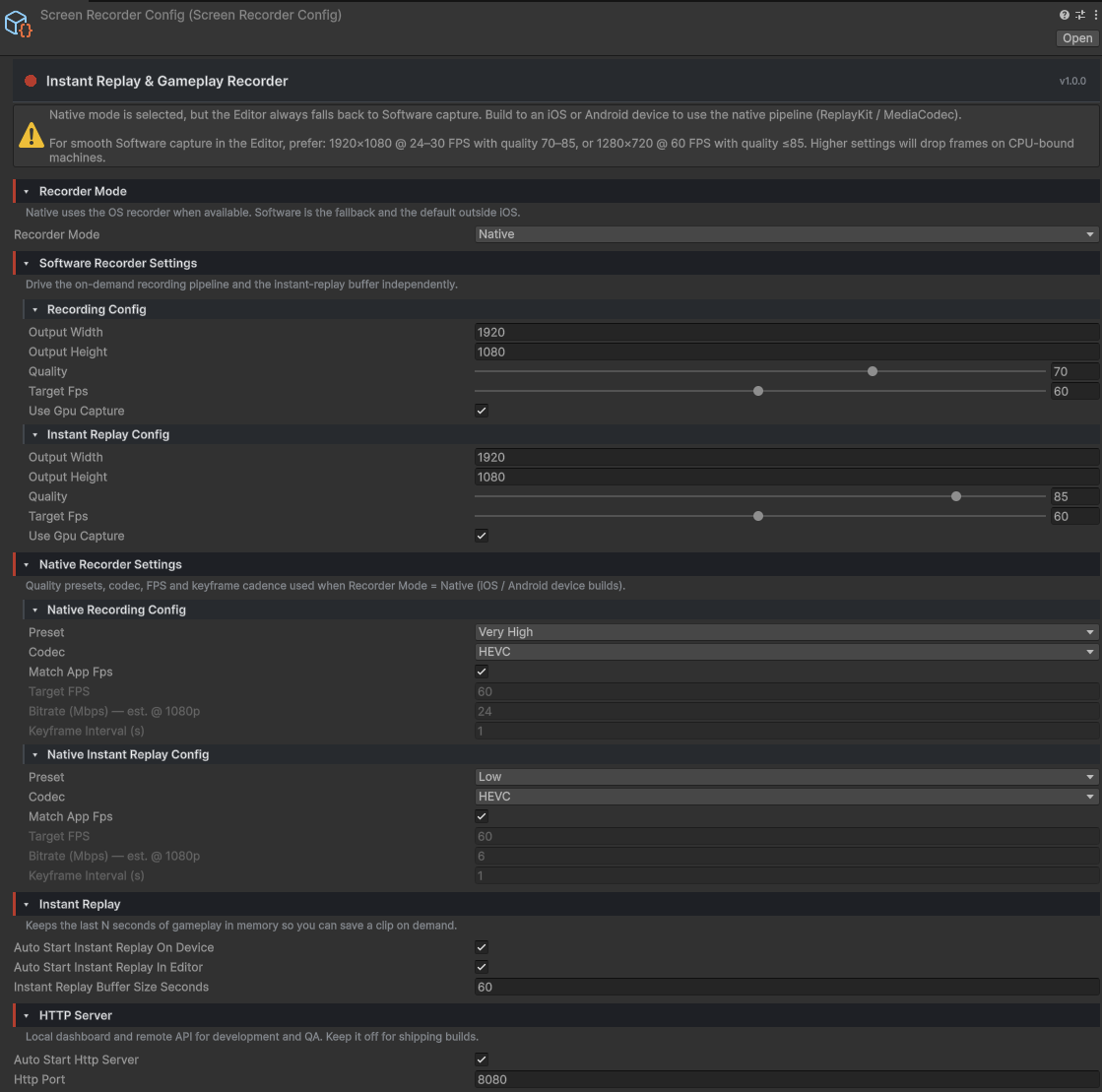
Recorder Mode
| Field | Type | Default | What it does |
|---|---|---|---|
| Recorder Mode | Native / Software |
Native |
Native calls the platform encoder (ReplayKit on iOS, MediaProjection + MediaCodec on Android) — best quality, lowest CPU. Software runs a pure-C# pipeline that works everywhere, including the Editor. |
Software Recorder Settings
Two sub-configs use the same fields: Recording Config (used by StartRecording) and Instant Replay Config (used by the rolling buffer). Tune them independently — replay typically wants lower resolution and FPS so the buffer stays cheap.
| Field | Type | Default | What it does |
|---|---|---|---|
| Output Width | int ≥16 | 1920 | Output frame width in pixels. Downscaling shrinks both CPU cost and file size. |
| Output Height | int ≥16 | 1080 | Output frame height in pixels. Match your game's aspect ratio so footage isn't stretched. |
| Quality | int 0–100 | 70 | JPEG quality per frame. Anything above ~85 doubles encode time without looking better. |
| Target FPS | int 1–120 | 24 | 24–30 is safe everywhere. 60 FPS is realistic only at ≤720p with quality ≤85. For 1080p @ 60, use Native mode. |
| Use GPU Capture | bool | false | Captures into a RenderTexture on the GPU instead of via CaptureScreenshotAsTexture. Avoids per-frame Texture2D allocation and a synchronous round-trip — main-thread stall drops from ~1–20 ms to sub-millisecond. Biggest gains on Android. Turn it off if frames come out upside-down or UI is missing. |
Native Recorder Settings
Same split: Native Recording Config and Native Instant Replay Config. The replay default is one tier lower (Medium) so memory pressure stays manageable.
| Field | Type | Default | What it does |
|---|---|---|---|
| Preset | Low / Medium / High / VeryHigh / Custom | High | Quality preset. Bitrate is derived from resolution × FPS × bits-per-pixel. Custom unlocks the two fields below. |
| Codec | HEVC / H264 | HEVC | HEVC produces ~30–50% smaller files at the same visual quality. Pick H.264 only if you upload to a service that rejects HEVC. |
| Match App FPS | bool | true | Follow Application.targetFrameRate. Recording faster than the game renders wastes bandwidth; recording slower drops visible frames. |
| Target FPS | int 24–120 | 60 | Used only when Match App FPS is off. A hint to the encoder — the OS still delivers at the device's native refresh rate. |
| Custom Bitrate (Mbps) | int 1–50 | 20 | Absolute bitrate. Editable only when Preset = Custom. |
| Custom Keyframe Interval (s) | float 0.25–5.0 | 1.0 | I-frame spacing. Smaller values improve seek/trim accuracy at a small bitrate cost. 1.0 is the industry default. Editable only when Preset = Custom. |
Color Space Mode
| Field | Type | Default | What it does |
|---|---|---|---|
| Color Space Mode | Auto / ForceLinear / ForceSRGB | Auto | Applies to screenshots and Software-mode video. Auto picks the right read/write based on project settings. If output looks too dark, too bright, or black, override here. Has no effect on Native-mode video — the platform encoder owns color. |
Instant Replay
| Field | Type | Default | What it does |
|---|---|---|---|
| Auto Start On Device | bool | false | When on, the rolling replay buffer starts the moment the scene loads on a real device. Off by default — call StartInstantReplay() when you want it. |
| Auto Start In Editor | bool | false | Same, but in Play Mode. Off by default. |
| Buffer Size (s) | int 1–600 | 60 | How many seconds of recent gameplay to keep in memory. Memory cost scales with this value, the resolution, and the FPS. |
HTTP Server
| Field | Type | Default | What it does |
|---|---|---|---|
| Auto Start HTTP Server | bool | false | Off by default. When on, the server binds to all interfaces — any device on the same network can open the dashboard. Leave it off in store builds. |
| HTTP Port | int 1024–65535 | 8080 | Port the embedded HTTP server listens on. Pick anything free above 1024. |
6. Features
6.1 Recording
StartRecording / StopRecording / RecordFor(seconds) start a recording and hand back the MP4 as byte[]. The package never writes to disk — you decide where the file goes.
6.2 Instant Replay
StartInstantReplay begins a rolling buffer. SaveInstantReplay(seconds) slices the last N seconds and returns it as MP4. StopInstantReplay and ClearInstantReplayBuffer drop the buffer when you're done.
By default the buffer is idle — call StartInstantReplay() when you want to begin capturing. If you turn on Auto Start On Device or Auto Start In Editor, buffering instead starts automatically when the facade wakes up, and you only need to call SaveInstantReplay when the player does something worth keeping.
6.3 Screenshots
TakeScreenshot(callback) returns JPEG bytes (quality 75). It honours Color Space Mode and works on every platform regardless of the recorder mode. Frame is captured at end-of-frame, so post-effects and UI are included.
6.4 Remote Dashboard
A small embedded server exposes a single-page Remote Dashboard plus a REST API on the same port. Useful for QA, automation, or anyone testing builds on a phone without cabling it to a laptop. See §8.
7. Scripting API
using NF.ScreenRecorder;
using NF.ScreenRecorder.UniTaskExtensions; // optional
Record N seconds and save to disk
// Callback
_recorder.RecordFor(30, mp4 =>
    File.WriteAllBytes(Path.Combine(Application.persistentDataPath, "clip.mp4"), mp4));

// UniTask
var mp4 = await _recorder.RecordForAsync(30, ct);
File.WriteAllBytes(Path.Combine(Application.persistentDataPath, "clip.mp4"), mp4);
Manual start / stop
// Callback
_recorder.StartRecording(() => Debug.Log("recording"));
// ... later ...
_recorder.StopRecording(mp4 => Save(mp4));

// UniTask
await _recorder.StartRecordingAsync(ct);
// ... later ...
var mp4 = await _recorder.StopRecordingAsync(ct);
Save the last 60 seconds (instant replay)
// Callback — assumes auto-start is on, otherwise call StartInstantReplay first
_recorder.SaveInstantReplay(60, mp4 => Save(mp4));

// UniTask
var replay = await _recorder.SaveInstantReplayAsync(60, ct);
Take a screenshot
// Callback
_recorder.TakeScreenshot(jpg => File.WriteAllBytes("shot.jpg", jpg));

// UniTask
var jpg = await _recorder.TakeScreenshotAsync(ct);
Start / stop the dashboard at runtime
_recorder.StartHttpServer();          // configured port
_recorder.StartHttpServer(9000);      // override
_recorder.StopHttpServer();
8. Remote Dashboard
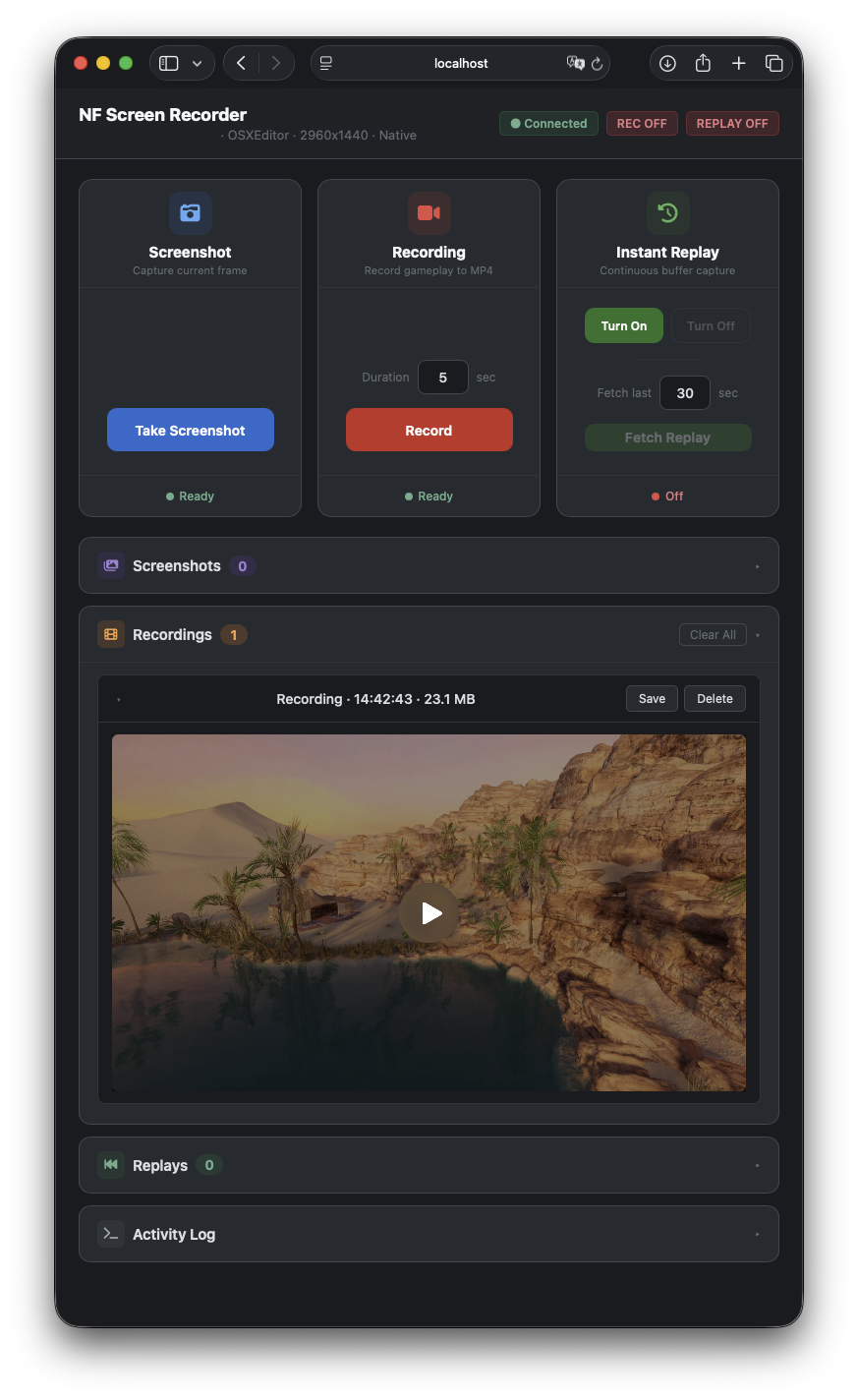
Enabling
Tick Auto Start HTTP Server in the config, or call it manually:
_recorder.StartHttpServer();           // uses the configured port
_recorder.StartHttpServer(9000);       // override
_recorder.StopHttpServer();
Reaching it
When the game runs in the Editor or on the same machine as your browser, just open http://localhost:8080/ (or whatever port you configured). For builds running on a phone or another device, the server binds to 0.0.0.0 — open http://<device-ip>:<port>/ from any device on the same Wi-Fi. iOS will prompt for local-network permission once.
Playback compatibility
Software-mode recordings use an MJPEG-in-MP4 container, which most browsers can't decode for inline playback — the in-page video preview may stay blank or show an error. The file itself is valid: use the Save button (or download from the REST endpoint) and the MP4 will play in any desktop video player. Native-mode recordings on iOS/Android are H.264/HEVC and play in-browser without issues.
Endpoints
| Method | Path | Returns | Notes |
|---|---|---|---|
| GET | / | HTML | The dashboard page. |
| GET | /screenshot | image/jpeg | One JPEG. |
| POST | /recording?seconds=N | video/mp4 | Records for N seconds (1–300), returns MP4. 409 if a recording or replay is already running. |
| POST | /replay/start | 204 | Begins the rolling buffer. 409 if already running or a recording is in progress. |
| POST | /replay/stop | 204 | Stops the rolling buffer. 409 if not running. |
| POST | /replay?seconds=N | video/mp4 | Saves the last N seconds (0 = whole buffer). 409 if replay isn't running. |
| GET | /status | application/json | { "recording": bool, "replay": bool } |
| GET | /device | application/json | Device name, platform, screen resolution, recorder mode, package version. |
9. iOS / Android Notes
iOS
- ReplayKit shows its own permission sheet the first time
StartRecordingruns. The OS owns that flow — no API call from the package can bypass it. - ReplayKit refuses to start while Xcode's GPU frame capture is attached. If the API errors immediately, that's usually why.
- Native mode produces an H.264 or HEVC MP4 directly. The Software path is available as a fallback but costs significantly more CPU.
Android
MediaProjectionshows the system "Start recording or casting" prompt once per session. If the user denies it, recording fails fast.- A foreground service notification is mandatory on Android 14+ — that's why
POST_NOTIFICATIONSis requested. - Some manufacturers (older Samsung firmware, certain MediaTek devices) cap MediaProjection at ~30 FPS regardless of the Target FPS value. There is no software workaround.
10. Troubleshooting
- Recording is upside-down or UI is missing → turn off Use GPU Capture in the software config.
- Output looks too dark / too bright / black → switch Color Space Mode from
AutotoForceLinearorForceSRGB. - Dashboard unreachable → both devices on the same Wi-Fi, iOS local-network permission granted, no firewall blocking the chosen port. Check
IsHttpServerRunningreturnstrue. - HEVC playback fails after upload → switch Codec to
H264. - Long replay buffer crashes on a low-RAM device → reduce Buffer Size, drop the replay config's Output Width / Output Height, or lower Target FPS.
- Android build fails on min/target SDK → Player Settings → Other Settings: Minimum API Level ≥ 24, Target API Level ≥ 29.
- Recording starts and immediately stops → check the device log for
MediaProjectiondenial (Android) or a ReplayKit error (iOS). The most common cause is permission decline.
11. Support
- Author — nfcodes
- Email — contact@nfcodes.com
- Web — https://nfcodes.com
- License — see
LICENSE.mdshipped with the package - Version — 1.0.0 · Unity 2022.3+